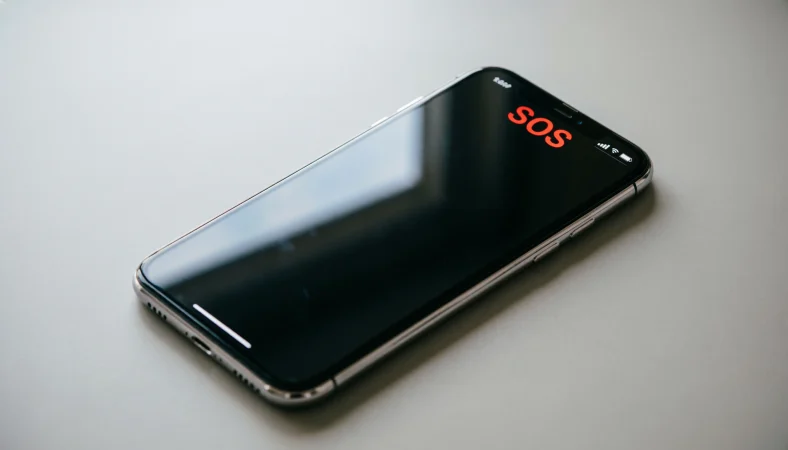
SOS on an iPhone means your device can only make emergency calls because it has lost its normal cellular connection. When you see SOS or SOS Only in the status bar, you can’t make regular calls, send texts, or use mobile data, but you can still contact emergency services if you’re within range of any available cellular network.
You’re scrolling through your iPhone settings, or maybe you’ve just turned on your device after a restart, and you notice something unusual: the words “SOS” or “SOS Only” in the status bar at the top of your screen. Your heart skips a beat. What does it mean? Is your phone broken? Is there an emergency you don’t know about? What if you’re traveling and suddenly see this?
Don’t panic.
The “SOS” indicator on your iPhone is actually a helpful feature designed to keep you safe. But it’s also one of the most misunderstood and anxiety-inducing status indicators on any smartphone. In this comprehensive guide, we’ll explain everything you need to know about SOS on your iPhone from its life-saving capabilities to why it sometimes appears when you least expect it.
By the end of this article, you’ll understand exactly what SOS means, how to use it properly, how to turn it off if you need to, and what to do when you see it on your screen.
What Does SOS Mean on My iPhone?
| Aspect | Details |
|---|---|
| Meaning | Emergency calling feature that contacts local emergency services |
| Context | Life-threatening situations requiring immediate help |
| Usage | Press side button 5 times or hold side + volume buttons |
| Platforms | All iPhones from iPhone 6 onwards (varies by model) |
| Example | “I accidentally triggered SOS while hiking—it called 911!” |
| Tone | Serious, emergency-focused, helpful, functional |
What Does SOS Stand For?
Contrary to popular belief, SOS doesn’t actually stand for “Save Our Souls” or “Save Our Ship.” These are backronyms phrases created after the fact to help people remember the signal.
The real history: SOS was adopted as the international Morse code distress signal in 1905. The letters themselves don’t represent any specific words. The signal was chosen simply because it was easy to remember and transmit in Morse code: three dots, three dashes, three dots (… — …).
Why Did Apple Choose SOS for iPhone?
Apple adopted the SOS term for their emergency feature because:
- It’s universally recognized as a distress signal
- It immediately communicates urgency
- It transcends language barriers
- It has decades of established meaning and trust
On your iPhone, SOS specifically refers to the emergency calling feature that automatically dials your local emergency number whether that’s 911 in the United States, 112 in Europe, 999 in the UK, or any other emergency number worldwide.
Does SOS on iPhone Mean Emergency Only?
Sometimes yes, sometimes no. “SOS” and “SOS Only” can mean different things:
SOS Only: This appears when your iPhone can only make emergency calls because you’re in an area without your carrier’s signal but another network is available for emergency calls. Your iPhone is roaming onto another carrier’s network specifically for emergency services.
SOS (without “Only”): This typically means the SOS emergency feature is available and ready to use on your device.
What Does the SOS Feature Actually Do on iPhone?
When you activate SOS on your iPhone, three things happen simultaneously:
1. Emergency Services Call
Your iPhone automatically dials the local emergency number in your current location. The call goes through even if your phone is locked, you don’t have a cellular plan in that country, or you’re in an area with weak signal.
2. Location Sharing
Your iPhone sends your current location to emergency contacts you’ve set up in your Medical ID. This includes a map pin showing your exact location, which updates in real-time.
3. Medical ID Display
Your Medical ID information appears on the emergency call screen, giving first responders access to crucial medical information like allergies, medications, and emergency contacts.
What the SOS Countdown Looks Like
When you trigger SOS, your iPhone begins a countdown:
- iPhone 8 and later: 8-second countdown with a warning sound
- iPhone 7 and earlier: 3-second countdown without a warning sound
- During countdown: You can cancel by tapping the “Stop” button
Does SOS Mean My Phone Is Broken?
No—absolutely not. One of the most common misconceptions is that SOS appears because something is wrong with the phone hardware or software.
Here’s the truth:
- SOS is a feature, not an error indicator
- Your iPhone is functioning exactly as designed
- The SOS indicator is trying to help you, not warn you about problems
Think of it like the emergency exit sign in a building—it’s there to help you in an emergency, not because the building is defective.
When SOS Appears Naturally
Your iPhone might display SOS in these normal situations:
- After restarting your device (it briefly shows while reconnecting to networks)
- In areas with poor carrier coverage but available emergency networks
- When traveling internationally and roaming
- Immediately after an emergency call or attempted emergency call
How to Use SOS on iPhone (Step-by-Step)
iPhone 8 or Later (Including All Models with Face ID)
Method 1: Button Press
- Press and hold the side button and either volume button simultaneously
- Hold until the SOS slider appears
- Drag the SOS slider to call emergency services
Method 2: Rapid Press
- Rapidly press the side button 5 times
- A countdown begins
- The emergency services call automatically after countdown
iPhone 7 or Earlier (Models with Home Button)
Method 1: Button Press
- Rapidly press the sleep/wake button 5 times
- Drag the SOS slider to call emergency services
What Happens After You Call SOS
- Immediate response: The call connects to your local emergency dispatcher
- Location sharing: Your Emergency Contacts receive a text with your location
- Auto-update: Your location continues to update as you move
- Medical ID available: Your medical information is accessible to first responders
Setting Up SOS on Your iPhone (Before You Need It)
Don’t wait until an emergency to set up SOS. Here’s how to configure it:
Enable SOS Calling
- Open Settings app
- Tap Emergency SOS
- Toggle on Call with Side Button (iPhone 8 or later)
- Toggle on Auto Call (if you want automatic dialing after countdown)
- Toggle on Emergency SOS (for older iPhone models)
Setting Up Emergency Contacts
- Open the Health app
- Tap your profile picture in the top right corner
- Tap Medical ID
- Tap Edit
- Scroll to Emergency Contacts
- Tap Add Emergency Contact
- Choose contacts from your phone list
- Set their relationship to you
Adding Your Medical ID Information
Your Medical ID is crucial for first responders. Include:
- Allergies and reactions
- Medications you take
- Medical conditions
- Blood type
- Organ donor status
- Emergency contacts
What Does “SOS Only” Mean on iPhone?
“SOS Only” is one of the most common status indicators that causes confusion. Let’s break it down:
Technical Explanation
SOS Only means your iPhone is not connected to your carrier’s network for regular calls, texts, or data. However, it can still make emergency calls by using another available carrier’s network.
This happens because:
- You’re in a remote area without your carrier’s coverage
- There’s a network outage in your area
- You’re traveling internationally without roaming enabled
- Your carrier has temporarily lost service
What You Can and Cannot Do in SOS Only Mode
✅ You CAN:
- Call emergency services (911, 112, 999, etc.)
- Access your Medical ID
- View your current location
- Use previously downloaded content
❌ You CANNOT:
- Make regular phone calls
- Send or receive text messages (except iMessage if WiFi is available)
- Use mobile data
- Browse the internet (without WiFi)
How to Exit SOS Only Mode
- Move to an area with coverage: Travel to a location where your carrier has service
- Connect to WiFi: WiFi calls and iMessage may work even in SOS Only
- Restart your iPhone: Sometimes a simple restart resolves network issues
- Check carrier settings: Go to Settings > General > About to check for updates
- Toggle Airplane Mode: Turn Airplane Mode on and off to refresh network connection
- Remove and reinsert SIM card: If you have a physical SIM
Real Example: What SOS Only Looks Like
Scenario: Sarah is hiking in a remote national park. She notices her iPhone says “SOS Only” at the top of the screen. She can’t call her friend, send texts, or check Instagram. However, if she falls and injures herself, she can still call 911 for help because her iPhone is connected to an emergency-only network.
Platform-Specific Meaning: What SOS Means in Different Contexts
SOS on iPhone in the US
In the United States, SOS on iPhone always connects to 911. The feature is designed to work even if:
- Your phone is locked
- You don’t have an active cellular plan
- You’re in an area with weak signal
- You have no SIM card inserted (for emergency calls only)
SOS on iPhone in Other Countries
Emergency SOS works internationally with local emergency numbers:
- United Kingdom: 999 and 112
- Canada: 911 (same as US)
- Europe: 112 (works in all EU countries)
- Australia: 000
- Japan: 110 (police) and 119 (ambulance/fire)
- India: 100 (police), 101 (fire), 102 (ambulance)
SOS on iPhone vs. SOS on Other Devices
| Device | SOS Meaning | Activation |
|---|---|---|
| iPhone | Emergency services call | Button combo |
| Apple Watch | Emergency call | Side button hold |
| Android | Emergency features | Multiple methods |
| Samsung Galaxy | Emergency SOS | Power key press |
| Google Pixel | Safety Check | Scheduled or manual |
Real-Life Examples: When People Actually Use SOS
Example 1: Car Accident
Scene: Late night on a deserted highway. Jenna’s car hits a patch of ice and spins into a ditch. She’s shaken but conscious. Her iPhone is in the passenger seat, slightly out of reach. She manages to grab it and rapidly presses the side button 5 times. The countdown begins, and 911 is called automatically. Emergency services arrive within 12 minutes.
Example 2: Medical Emergency
Scene: James has a known heart condition. At a family gathering, he suddenly collapses. His wife doesn’t know CPR and panics. She remembers the SOS feature on his iPhone, uses his Face ID to unlock it, and activates SOS using the button combination. The operator talks her through CPR until paramedics arrive.
Example 3: International Traveler
Scene: Maria is traveling in France. She speaks limited French and has a minor accident, dislocating her shoulder. She activates SOS on her iPhone. The call connects to the local emergency number (112), and because her Medical ID contains her allergies and insurance information, the first responders can immediately start the right treatment protocol.
Example 4: Hiking Accident
Scene: Two friends are hiking in a remote area with “SOS Only” service showing on their iPhones. One friend suffers a severe ankle sprain and can’t walk. The other activates SOS, which calls local emergency services despite the “SOS Only” status. Rescue teams locate them using the iPhone’s location sharing.
Example 5: Home Invasion
Scene: Emma wakes up to strange noises in her home. She’s terrified and can’t speak loudly. She uses the silent SOS method on her iPhone (rapidly pressing the side button 5 times, which doesn’t make the alarm sound on newer models if the ringer is off). Emergency services are dispatched to her location without anyone in the house hearing the call.
Example 6: Accidental Trigger
Scene: Tom is at the gym, working out with his iPhone in his pocket. He doesn’t realize he’s pressing the side button repeatedly. His phone starts the SOS countdown and makes the warning sound. He quickly taps “Stop” to cancel the call. He later learns to be more careful and turns off the “Auto Call” feature to prevent future accidents.
Example 7: Elderly Parent Peace of Mind
Scene: Rebecca sets up SOS on her elderly mother’s iPhone and adds herself as an emergency contact. She shows her mother how to use it. A month later, her mother falls and can’t get up. She triggers SOS, and Rebecca immediately receives her mother’s location, allowing her to send help and arrive at the scene within minutes.
Can You Turn Off SOS on iPhone? (And Should You?)
How to Disable SOS Features
To disable automatic dialing:
- Go to Settings > Emergency SOS
- Toggle off Auto Call
With Auto Call off:
- Rapidly pressing the side button 5 times still shows the SOS slider
- You must manually drag the slider to make the call
- The countdown won’t automatically dial
To disable all SOS features:
- Go to Settings > Emergency SOS
- Toggle off Call with Side Button (iPhone 8 or later)
- Toggle off Emergency SOS (older models)
Warning: Think Before You Disable
Disabling SOS features means:
- ❌ You won’t have a quick emergency button
- ❌ You won’t be able to silently call for help
- ❌ You’ll lose access to automatic location sharing in emergencies
- ❌ Emergency services won’t receive your Medical ID automatically
Better Alternative: Customize Instead of Disable
Instead of turning it off completely, consider:
- Turning off Auto Call (so you need to confirm before calling)
- Turning off Countdown Sound (for silent activation)
- Reviewing and updating your Medical ID
- Practicing how to use SOS without accidentally triggering it
Who Should Consider Disabling?
- People with Parkinson’s or tremors who frequently trigger it accidentally
- Parents with young children who might play with the phone
- People in professions where accidental dialing is a concern
- Anyone who’s had multiple false alarms
SOS vs. Other iPhone Emergency Features
SOS vs. Medical ID
SOS: Calls emergency services, shares location
Medical ID: Shows medical information to first responders
Both work together, but they’re separate features. Even if you don’t trigger SOS, first responders can access your Medical ID from the lock screen.
SOS vs. Emergency Contacts
SOS: Contacts emergency services first, then shares location with your emergency contacts
Emergency Contacts: People you’ve designated to receive your location and Medical ID information
SOS vs. Fall Detection
SOS: Manual activation by you
Fall Detection: Automatic activation when the device detects a hard fall (available on Apple Watch SE and Series 4 or later, and iPhone 14 or later)
SOS vs. Crash Detection
SOS: Manual emergency calling
Crash Detection: Automatic emergency calling when the device detects a severe car crash (available on iPhone 14 and later)
SOS vs. Find My
SOS: Emergency-focused, immediate help
Find My: Location tracking for everyday purposes
Misinterpretations: What SOS Does NOT Mean
Let’s clear up the most common myths:
❌ Myth: SOS Means “Service Out of Service”
Truth: SOS is an emergency feature. If your service is out, you’d see “No Service” or “Searching,” not SOS.
❌ Myth: SOS Means My iPhone Is Hacked
Truth: SOS is a legitimate Apple feature. It’s not a sign of hacking, malware, or security breaches.
❌ Myth: SOS Means My Phone Is Out of Order
Truth: The feature is working exactly as designed when it shows SOS or SOS Only.
❌ Myth: I Need to Pay Extra for SOS
Truth: SOS is free and works even without a cellular plan. Emergency calls are always free.
❌ Myth: SOS Only Works in the US
Truth: SOS works in most countries worldwide with local emergency numbers.
❌ Myth: My Emergency Contacts Will Be Called
Truth: Emergency contacts receive location texts, not phone calls. The emergency number (like 911) receives the call.
❌ Myth: SOS Sends My Medical ID to Everyone
Truth: Only emergency services and first responders can access Medical ID. It’s designed to be viewed from your lock screen.
❌ Myth: My Location Is Always Shared
Truth: Location is only shared when you actively trigger SOS, not automatically or randomly.
❌ Myth: I Need to Set Up SOS for It to Work
Truth: SOS works out of the box. Setting it up only customizes features and adds Emergency Contacts.
❌ Myth: SOS Is the Same as a Panic Button App
Truth: SOS is built into iOS and doesn’t require a third-party app. It works even if the device is locked.
When NOT to Use SOS on iPhone
SOS is for genuine emergencies only. Here are situations where you should NOT use it:
- For test calls: Don’t test SOS unless you’re in a real emergency. If you want to practice, call your local non-emergency number.
- For small issues: A flat tire, locked keys, or minor fender bender typically doesn’t require emergency services.
- For non-emergency medical questions: If you’re not in immediate danger, call a doctor’s office or telehealth line instead.
- As a prank: False emergency calls are illegal in most countries and can result in fines or jail time.
- To reach a specific person: SOS contacts emergency dispatchers, not individuals. Use regular calling for non-emergency communications.
- To test your phone: There are other ways to test phone functions without triggering SOS.
- If you can call normally: If you can unlock your phone and make a regular call, do that instead of using SOS.
What to Do If You Accidentally Trigger SOS
- Don’t hang up: If a call connects, stay on the line and explain it was a mistake. Hanging up can make dispatchers think you’re in danger and send emergency services anyway.
- Tap “Stop”: If you’re in the countdown phase, tap the “Stop” button that appears on screen.
- Wait for the beep: If you hang up, the dispatcher will call back. Answer and confirm it was a false alarm.
- Learn from it: Adjust your settings if accidental triggers are frequent.
How to Respond When You See SOS on Someone Else’s iPhone
If you see SOS on a friend or family member’s iPhone:
Immediately Ask:
- “Are you okay?”
- “Is there an emergency?”
- “Do you need help?”
Check the Context:
- Is it “SOS Only” (network issue) or is it the SOS feature in use?
- Did they just trigger it accidentally?
- Are they in a location with poor service?
If It’s a False Alarm:
- Help them cancel the call if still in countdown
- If a call was made, help them explain to the dispatcher
- Suggest adjusting their SOS settings if accidental triggers are common
If It’s a Real Emergency:
- Stay with the person
- Use the SOS call on their behalf if they can’t
- Follow the dispatcher’s instructions
- Provide medical information if you know it
SOS on iPhone: Usage Tips for Different Groups
For Elderly Users
- 🎯 Set up SOS for them and explain it simply
- 🎯 Turn off Auto Call to prevent accidental triggers
- 🎯 Add yourself as an Emergency Contact
- 🎯 Practice the button combination together
- 🎯 Keep their Medical ID up to date
For Parents and Children
- 🎯 Teach older children when and how to use SOS
- 🎯 Explain the difference between SOS and regular calling
- 🎯 Set clear rules about what constitutes an emergency
- 🎯 Consider disabling Auto Call for younger children
- 🎯 Add parents as Emergency Contacts
For Travelers
- 🎯 Know that SOS works internationally
- 🎯 SOS Only is common abroad—don’t panic
- 🎯 Update Medical ID with relevant info for travel
- 🎯 Add travel companions as Emergency Contacts
- 🎯 Understand what local emergency number SOS will dial
For People with Medical Conditions
- 🎯 Keep Medical ID comprehensive and accurate
- 🎯 Include specific medical instructions
- 🎯 List current medications
- 🎯 Add specialists as Emergency Contacts
- 🎯 Review Medical ID regularly for updates
For People in High-Risk Professions
- 🎯 Practice using SOS silently
- 🎯 Keep Auto Call on for quick activation
- 🎯 Update Emergency Contacts regularly
- 🎯 Consider using “SOS Only” understanding for remote work
- 🎯 Have backup communication methods
How to Respond to SOS Messages (When Someone Says SOS)
Scenarios
Scenario 1: Text Message SOS
Friend: SOS! I’m in trouble.
They’re in genuine distress and can’t call. You should call emergency services or contact someone nearby.
Scenario 2: Social Media SOS
Friend: Can someone come get me? SOS
Contact them immediately to assess the situation. It might not be a full emergency but requires help.
Scenario 3: Joke SOS
Friend: SOS, I’m out of coffee! 🤣
This is clearly playful. Respond with humor but gently remind them what SOS actually means.
Best Responses
- “Are you okay? Do you need me to call 911?”
- “Where are you? I’m coming to help.”
- “What’s happening? Tell me what you need.”
- “I’m calling emergency services now.”
- “Stay on the phone with me. Help is coming.”
Usage in Different Communication Channels
Text Messaging
Context: Serious distress
Example: “SOS, car accident on Highway 101”
Tone: Urgent, brief, clear
Snapchat
Context: Usually playful, sometimes concerning
Example: “SOS no cap, my phone is at 1% 😭”
Tone: Dramatic but often non-serious
Context: Mixed uses, often semi-serious
Example: “SOS fr, I’m lost in the city”
Tone: Can be serious or playful depending on context
TikTok Comments
Context: Mostly humorous exaggeration
Example: “SOS this is so awkward”
Tone: Highly casual, rarely genuine emergency
Instagram DMs
Context: Often joking or exaggerated
Example: “SOS, I can’t find the restaurant”
Tone: Mixed, often playful
Group Chats
Context: Can be genuine or playful
Example: “SOS, I need help with this homework”
Tone: Usually non-serious but can indicate real distress
Professional Settings
Context: Rarely used unless genuine emergency
Example: “SOS, the server is down”
Tone: Serious, professional emergency
Security and Privacy Considerations
What Data Does SOS Share?
When you trigger SOS on your iPhone:
- Your location (latitude and longitude coordinates)
- Your Medical ID (if set up)
- Your emergency contacts (names and phone numbers)
- Time of activation
Who Can Access Your SOS Data?
- Emergency services dispatchers: During the emergency call
- First responders: If your phone is at the scene
- Emergency contacts: They receive your location via text message
- Apple: Anonymized data for improving the feature
How to Update Your Medical ID Privacy
- Open Health app
- Tap your profile picture
- Tap Medical ID
- Tap Edit
- Review all information
- Ensure only relevant information is included
- Tap Done when finished
Tips for Maintaining Privacy
- ✅ Regularly review your Medical ID content
- ✅ Only add emergency contacts you trust
- ✅ Be selective about what medical information you include
- ✅ Remove old or outdated emergency contacts
- ✅ Use location sharing responsibly
Technical Requirements for SOS
Which iPhone Models Support SOS?
| Feature | Supported Models |
|---|---|
| Basic SOS calling | iPhone 4s and later |
| Auto Call | iPhone 8 and later |
| Side button activation | iPhone 8 and later (all Face ID models) |
| Home button activation | iPhone 7 and earlier |
| SOS with Emergency Contacts | All models with iOS 11 or later |
| Medical ID | iPhone 5s and later with iOS 8 or later |
Software Requirements
- iOS 11 or later for full SOS features
- iOS 10 or later for basic Medical ID
- Updates recommended for security patches
Regional Compatibility
- Works in most countries worldwide
- Uses local emergency numbers
- May require carrier support in some regions
What to Do After Using SOS
Immediately After the Call
- Stay on the line until dispatcher says to hang up
- Follow all instructions given
- If you accidentally called, explain immediately
- Provide your location if the dispatcher asks
After Emergency Services Arrive
- Share your Medical ID information if needed
- Stay calm and answer questions from responders
- Call a family member or friend to update them
- Tell first responders about any allergies or medications
In the Hours Following
- Ensure you have a way to charge your phone
- Update your Emergency Contacts if needed
- Review what happened and how to improve response next time
- Consider adding more details to your Medical ID
- Check on other people involved in the situation
Preventing Future Issues
- Review your SOS settings
- Update your Medical ID information
- Practice the activation method
- Consider setting up additional safety apps or tools
Edge Cases and Special Situations
What If SOS Triggers During a Power-Down?
- If your battery is critically low, SOS may still work briefly
- Emergency calls always take priority over regular functions
Using SOS with a Broken Screen
- If the screen doesn’t respond, the physical button combination still works
- The call connects, but you won’t be able to see or tap the “Stop” button
- Let the call connect and explain to the dispatcher
SOS on iPhone Without a SIM Card
- SOS works for emergency calls even without a SIM card
- You’ll likely see “SOS Only” status
- Regular calls, texts, and data won’t work
SOS During International Travel
- SOS automatically dials the local emergency number
- Location sharing still works internationally
- Data charges for location sharing may apply if you’re not on WiFi
SOS in Areas with Strict Phone Laws
- Some countries have restrictions on phone features
- SOS should still work for emergencies
- Be aware of local laws about phone usage and emergency services
SOS and CarPlay
- CarPlay does not override or disable SOS
- Your iPhone’s SOS button combinations still work
- In an accident, you can still trigger SOS through the phone itself
FAQs
What does SOS mean on my iPhone status bar?
Answer: It means your emergency SOS feature is active or available. If it says “SOS Only,” it means your phone can only make emergency calls because you’re not connected to your carrier’s network for regular calls.
Does SOS on iPhone call 911?
Answer: Yes, SOS on iPhone calls your local emergency number. In the US, that’s 911. In other countries, it automatically dials the appropriate local emergency number.
Can I turn off the SOS feature on my iPhone?
Answer: Yes, you can disable specific SOS features or the entire function in Settings > Emergency SOS. However, this is not recommended as it removes a vital safety feature.
Will SOS work if my iPhone is locked?
Answer: Yes, SOS works even when your iPhone is locked. You don’t need to unlock it to trigger the emergency call.
Why did my iPhone randomly say SOS only?
Answer: It means you’re in an area without your carrier’s coverage but another carrier’s network is available for emergency calls. It’s a normal network status indicator.
Does SOS use data or minutes?
Answer: No, SOS calls are free and don’t use your plan’s minutes or data. They work even without an active cellular plan.
How do I get my iPhone out of SOS mode?
Answer: Move to an area with better coverage, connect to WiFi, restart your phone, or toggle Airplane Mode on and off. These usually resolve the “SOS Only” status.
Can I use SOS on iPhone without service?
Answer: Yes, SOS will work for emergency calls even without regular cellular service. This is why “SOS Only” appears you have emergency-only service.
Does SOS share my location with anyone besides emergency services?
Answer: SOS shares your location with emergency services and with any Emergency Contacts you’ve set up in your Medical ID. It only does this when you trigger SOS.
What’s the difference between SOS and the emergency slider?
Answer: SOS is the feature that calls emergency services. The emergency slider (swipe to call) is one of several ways to activate the SOS feature.
Conclusion:
Seeing SOS or SOS Only on your iPhone simply means your device has lost its normal cellular connection but can still reach emergency services through any available network. In most cases, the issue is temporary and can be resolved by checking your network coverage, restarting your iPhone, toggling Airplane Mode, or contacting your carrier if the problem persists.
Understanding what the SOS indicator means can help you quickly identify whether it’s a signal issue, a carrier problem, or a device setting, so you can restore normal service and stay connected.
Discover More Articles About:
- Tapping the Helmet in Baseball: Meaning, Rules and Examples In 2026
- What Does a Safety Pin Tattoo Mean? Symbolism, History & Personal Meaning In 2026